Installing Literature Lab™ - Windows
Installing the software.
Open the Dropbox link from the installation email and download the Literature Lab database file.
Right-click on the file and select “Extract All”.
It is recommended to install the database on the root directory. Enter the path (such as C:\ or E:\) for the drive you want to extract to and start the process. Decompression may take a while.
The Literature Lab database has many files, some quite large, some quite small, and some of the files have very long file names. If you have trouble with Windows native file extractors, try the open-source program 7-Zip. It is more reliable and faster than the Windows zip extractor. The Mac native .zip file extractor has no problem decompressing the data.
Extraction creates a LitLabData directory with files and subdirectories, totaling 8G to 15G, depending on your Literature Lab configuration.
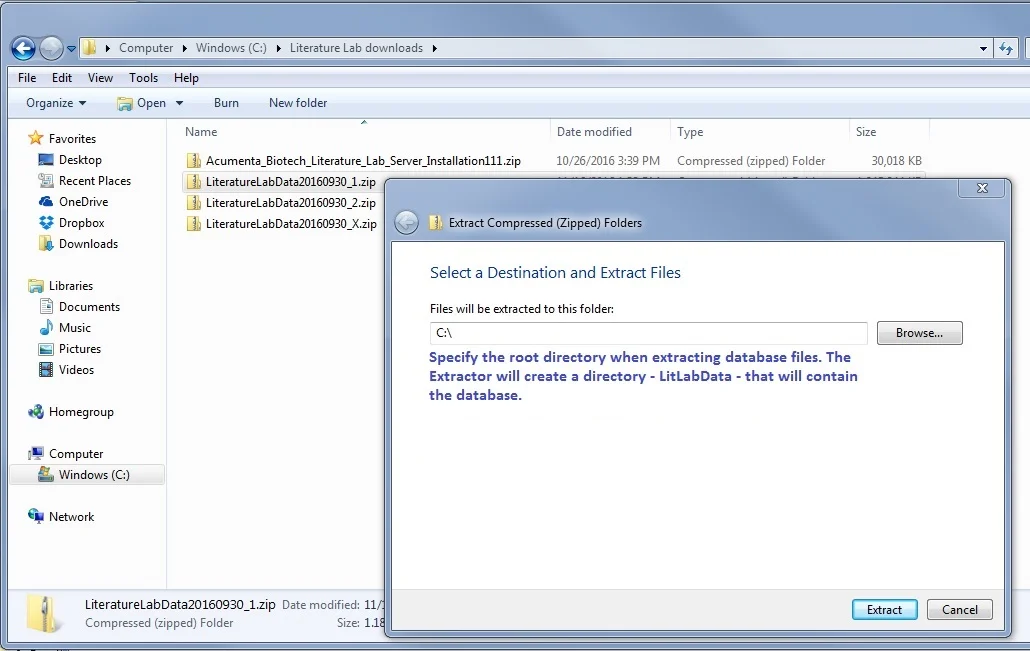
If you are installing the database on a shared file resource, you may be unable to install in the root directory. This is OK. Remember that if you are establishing a shared resource for your lab, it will be helpful to your users if they can easily locate the database, particularly if they get in touch with us with a support question.
Acumenta Biotech software supports UNC (Uniform Naming Convention) in all Literature Lab™ applications. This can greatly simplify accessing the data on a network. It is best to run the extraction program on the server for a server installation. Installing data over the network can be lengthy because of the large number of files in the Literature Lab™ database.
If you plan to have multiple users generating analyses from their workstations, you should install the Literature Lab™ PLUS Analyzer Service module on the server to reduce network traffic during Literature Lab analyses. Contact support@acumenta.com for the Service version of the Literature Lab PLUS Analyzer and to discuss any questions you have about network deployment of Literature Lab™.
Installing the software.
Before installing the Literature Lab™ software on each computer that will use it, download and install the latest 64-bit Java. You can run Literature Lab on 32-bit Java, but performance is significantly better with the 64-bit version. You can obtain the 64-bit Java download at: https://www.java.com/en/download/manual.jsp
It is easy to install or update Java on your computer. After you have downloaded and installed Java, proceed to the following steps.
Your email with the installation links specifies one file to download with the Literature Lab™ software, in the form:
Acumenta_Biotech_Literature_Lab_Windows_Application_Installation-(date).zip Download this file to your computer.
Right-click > "Extract All" to unzip the component installation files - there will be two, three, or four files, depending on the Literature Lab™ modules that you have licensed.
Click on the largest file to start the installation process. The largest file will have one of the following names:
Install_Literature_Lab_PLUS.exe
Install_Literature_Lab_Term_Viewer.exe
You will be asked the usual things - permission to install, accept the Software License Terms, your name, and organization...We recommend that you accept the suggested default location for the software files ((drive):\Acumenta\LitLab). Note that the software should be installed in a separate folder from the database.
After installing the first file, proceed to install the others. The entire process should take only a minute or two. The installation program will put an icon on the desktop for each Literature Lab™ application. It will also create a Start menu entry named “Acumenta Biotech” with a sub-menu for the Literature Lab™ programs. You can delete the desktop startup icons if that is your preference...
Start the PLUS application. You will be presented with this window where you enter your name and email address:

The Data Set Directory field specifies where the programs find the Literature Lab database. The path to the LitLabData directory must be entered (or browsed to and confirmed) in the Data Set Directory: field. If you extracted the database to C:\ per the above recommendation, then the data is in C:\LitLabData, and this explicit path must be entered into the Data Set Directory: field. Not (drive):\, and not the location where the software was installed. If you installed the database off the root at E:\, then the Data Set Directory is E:\LitLabData.
If the database is on a network, the user must have write permission to the LitLabData directory, and the Data Set Directory path can be entered as a mapping or using the UNC convention on your network.
Once you have completed entering these fields, you are ready to use Literature Lab™.
Errata:
The Literature Lab™ Help system uses HTML files that are installed in the software directory. A few browsers decide that Literature Lab's Help system is a pop-up, and when you click on the Help icon (the small question mark in the upper right corner on many Literature Lab screens), you will get a small window with meaningless HTML code. The following procedure will enable your Help files to open properly:
Open the browser’s Settings menu.
Select "Options".
Select a menu option for Privacy & Security.
Scroll down to a section for creating "Permissions."
Find an area referring to "Block pop-up windows".
In this section, there is usually a way to specify exceptions.
Paste the path below into the appropriate exception-generating location:
file:///C:/Acumenta/LitLab/Help_Index_Search_Viewer.html
If you haven't accepted the default Literature Lab software installation location, you will need to modify the path to point to the Help_Index_Search_Viewer.html file.
Questions? Send us an email at support@acumenta.com
Next: A quick test to make sure your software and data are properly installed.